Scan To Sheets
A Barcode Scanner for your Google Sheets
Simplify your workstream by scanning your barcode data directly into a Google Sheet!
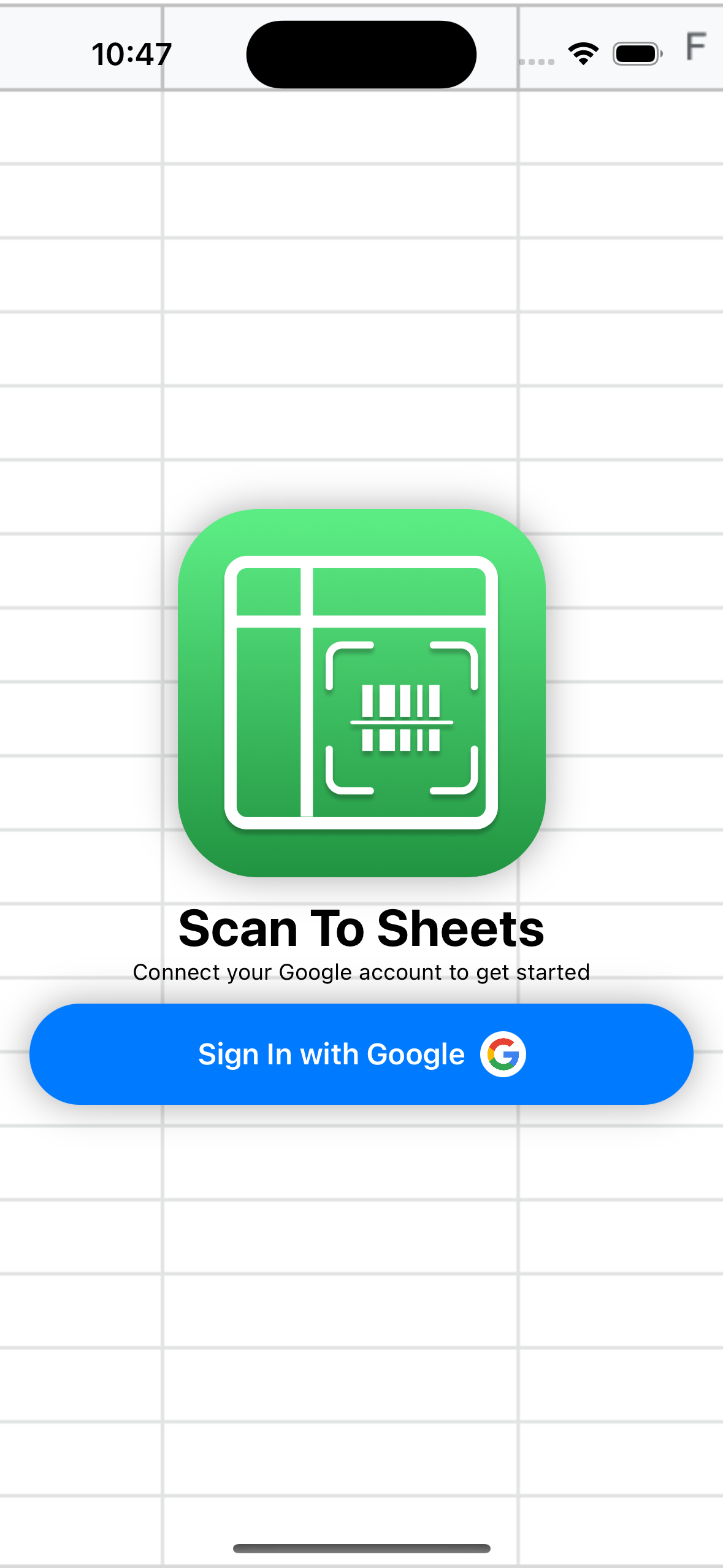
Scan barcodes directly into your Google Sheets! Just sign in with Google, choose a spreadsheet, and start scanning!
Scan barcodes directly into your Google Sheets! Just sign in with Google, choose a spreadsheet, and start scanning!
Scan barcodes directly into your Google Sheets! Just sign in with Google, choose a spreadsheet, and start scanning!
Scan barcodes directly into your Google Sheets! Just sign in with Google, choose a spreadsheet, and start scanning!
Select a Sheet
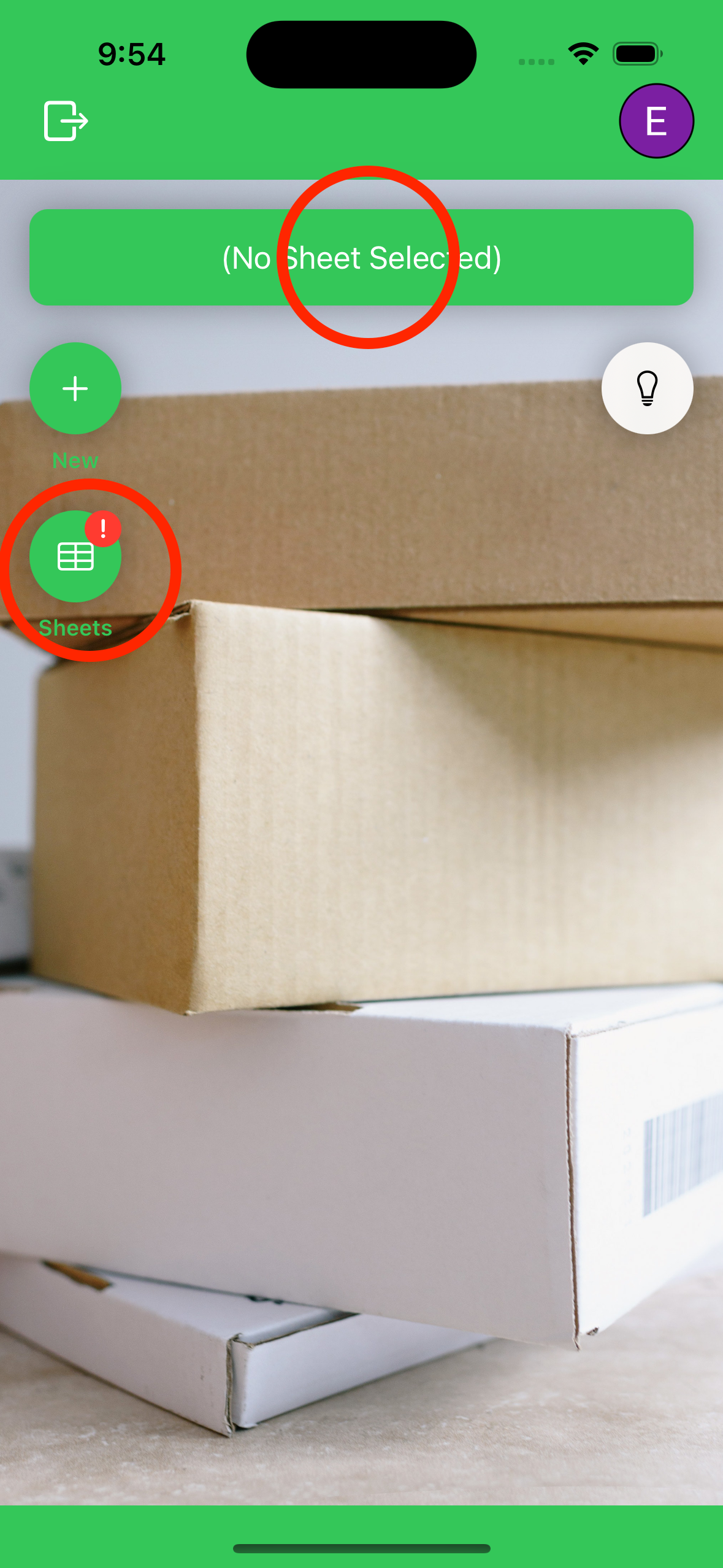
1-1 Tap the sheets button, or the spreadsheet bar to open the modal to choose a spreadsheet.
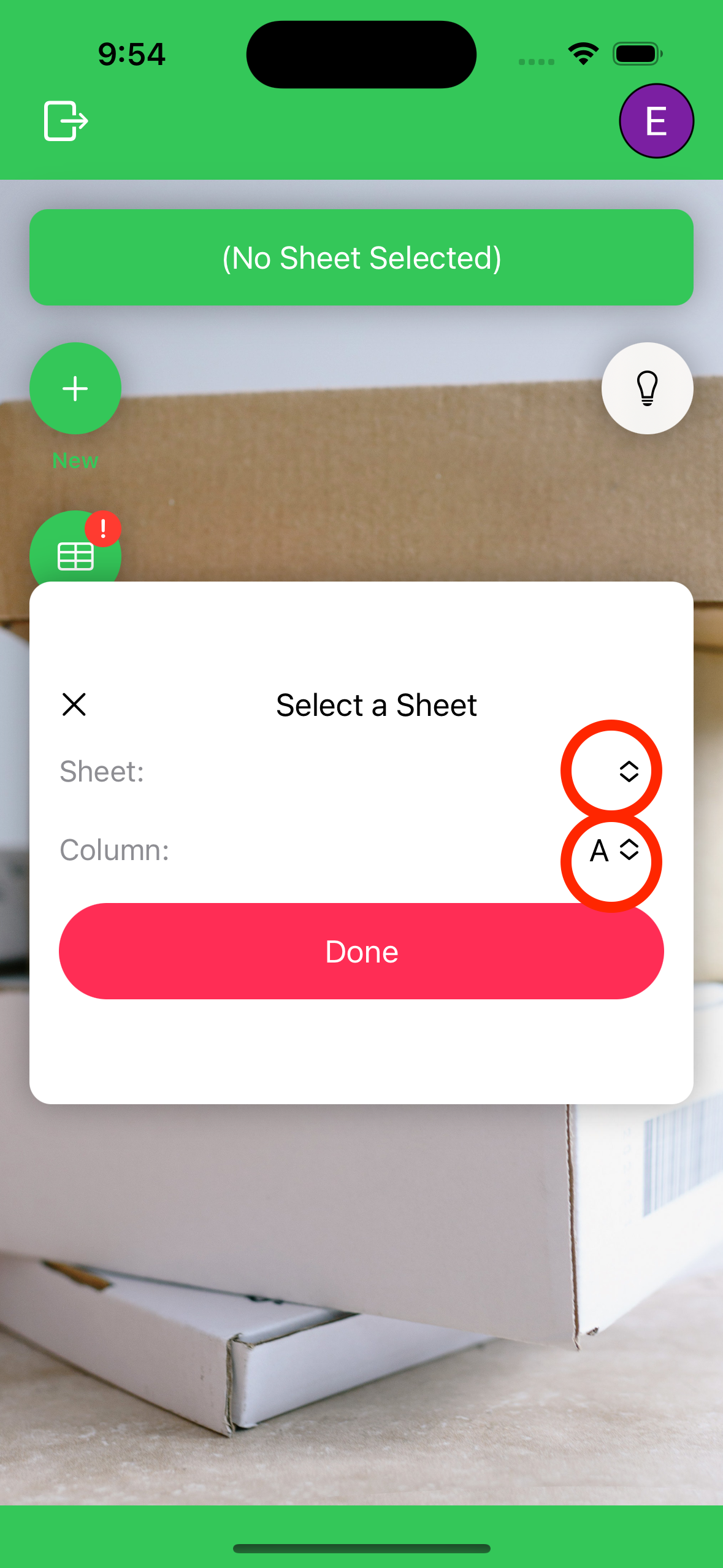
1-2 Choose a spreadsheet and column from the dropdowns.
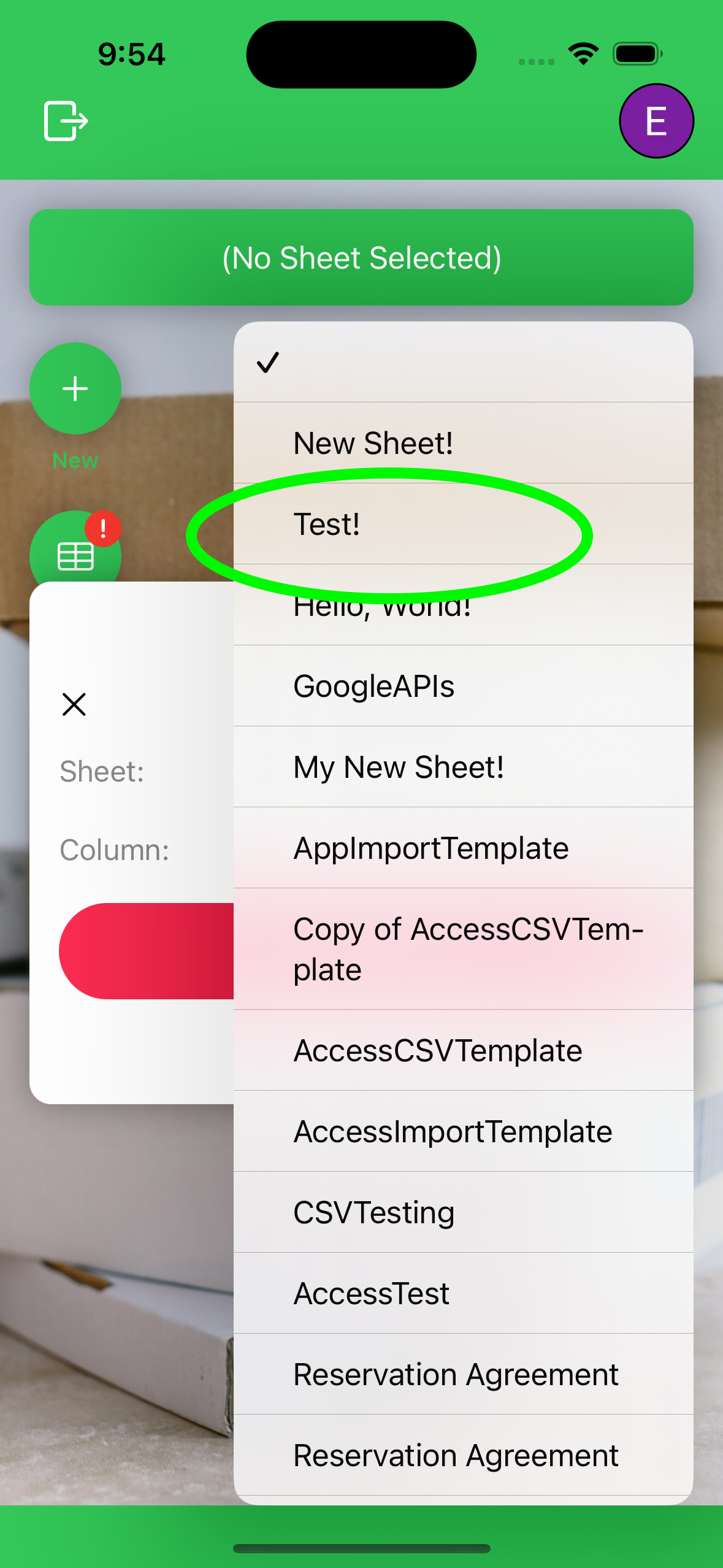
1-3 Select a spreadsheet from the dropdown.
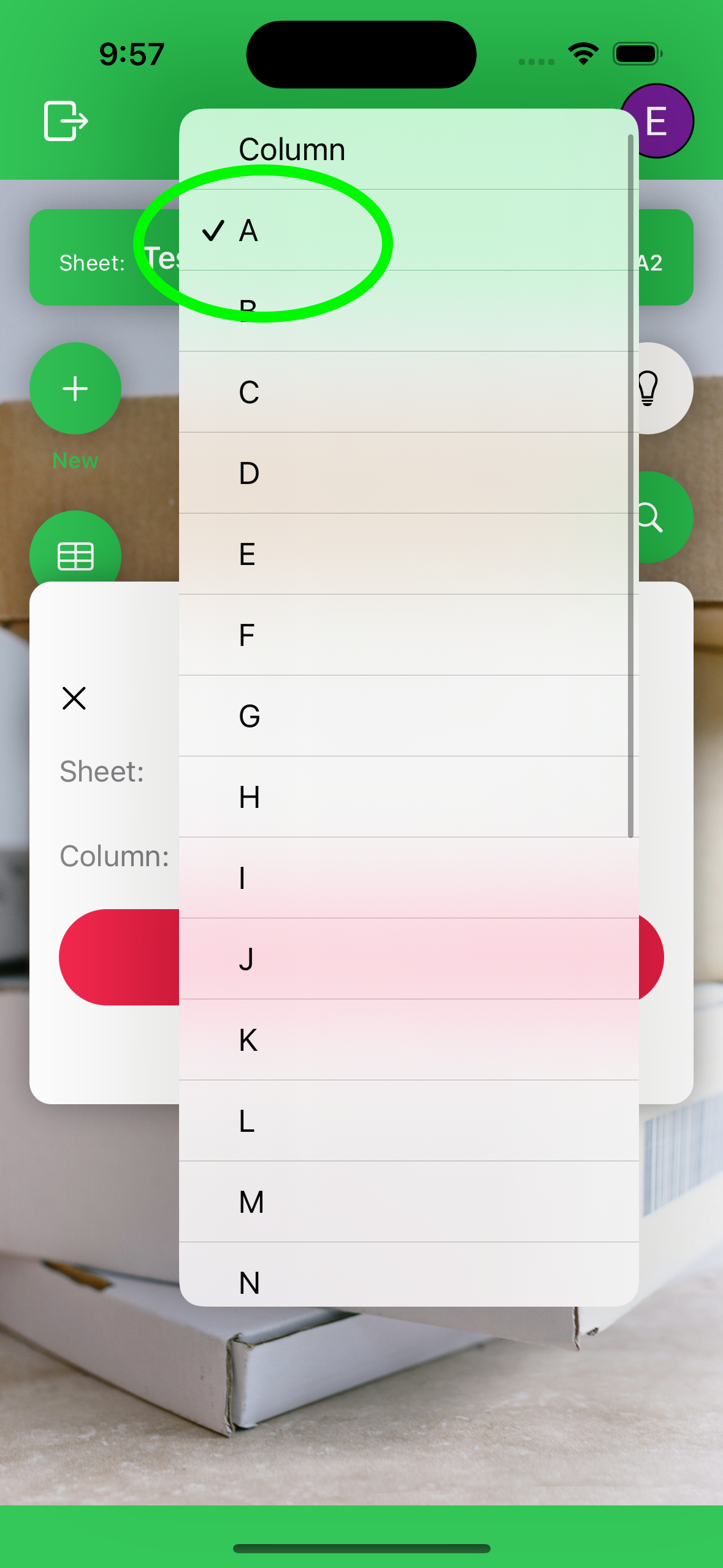
1-4 Your spreadsheet is now selected, choose a column to scan to.
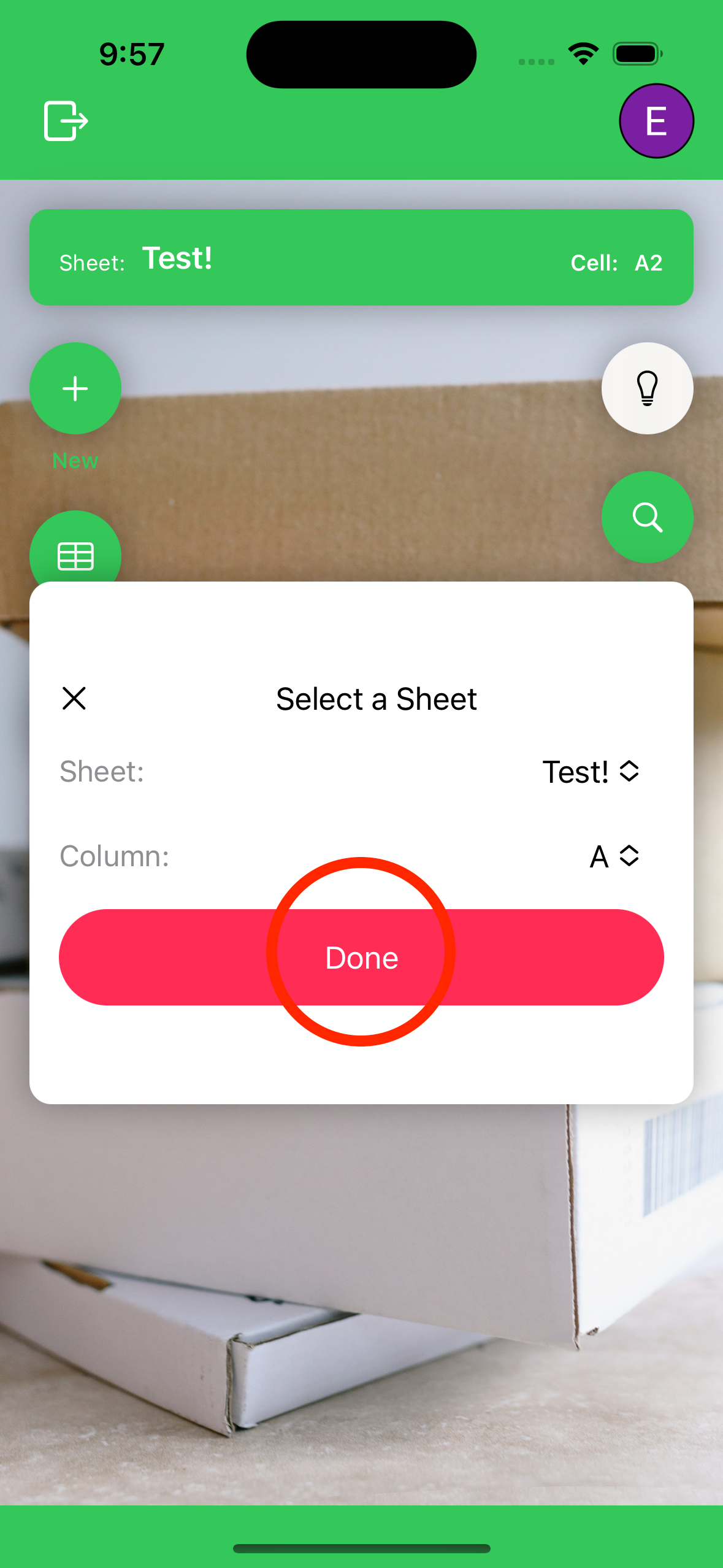
1-5 Select a columnm to scan data to.
Create a New Sheet
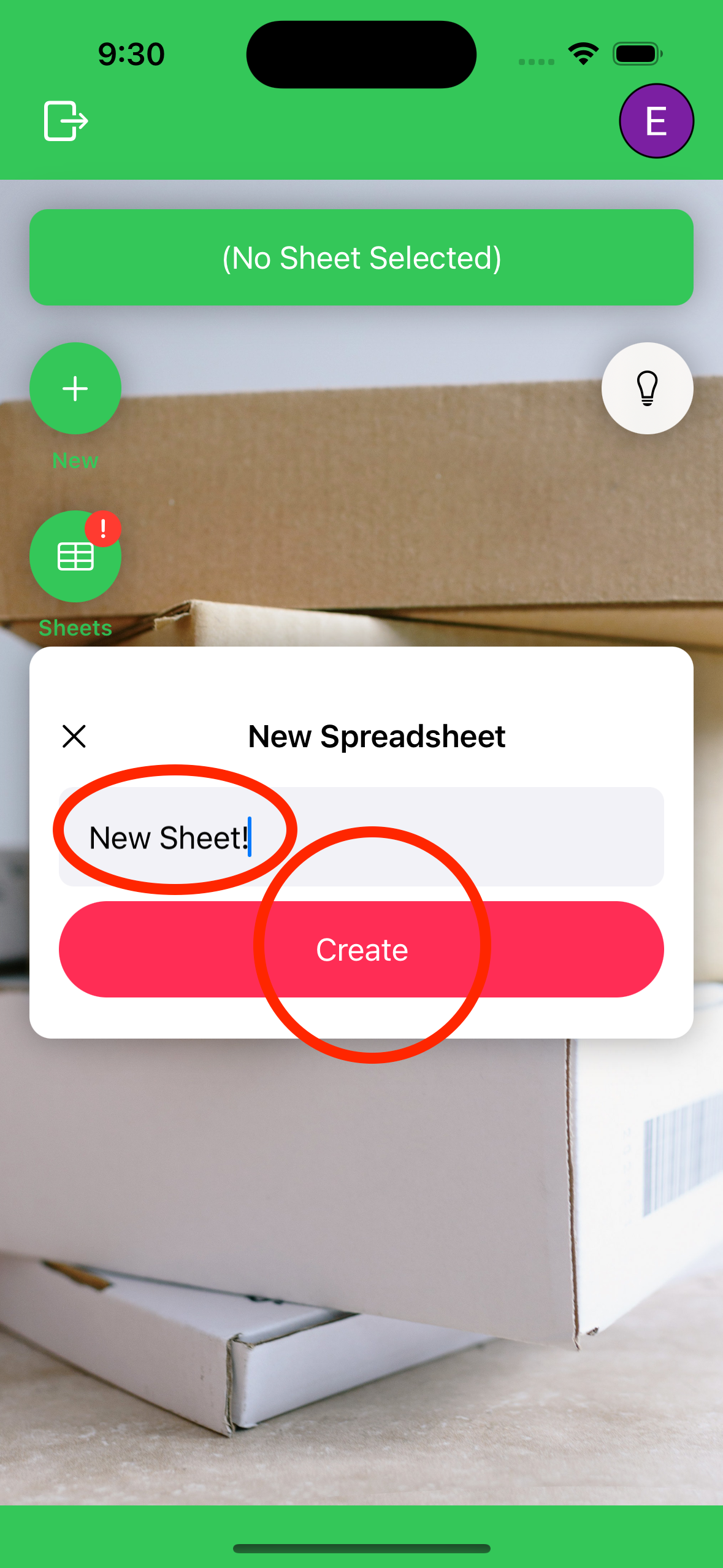
1-1 Tap the plus button.
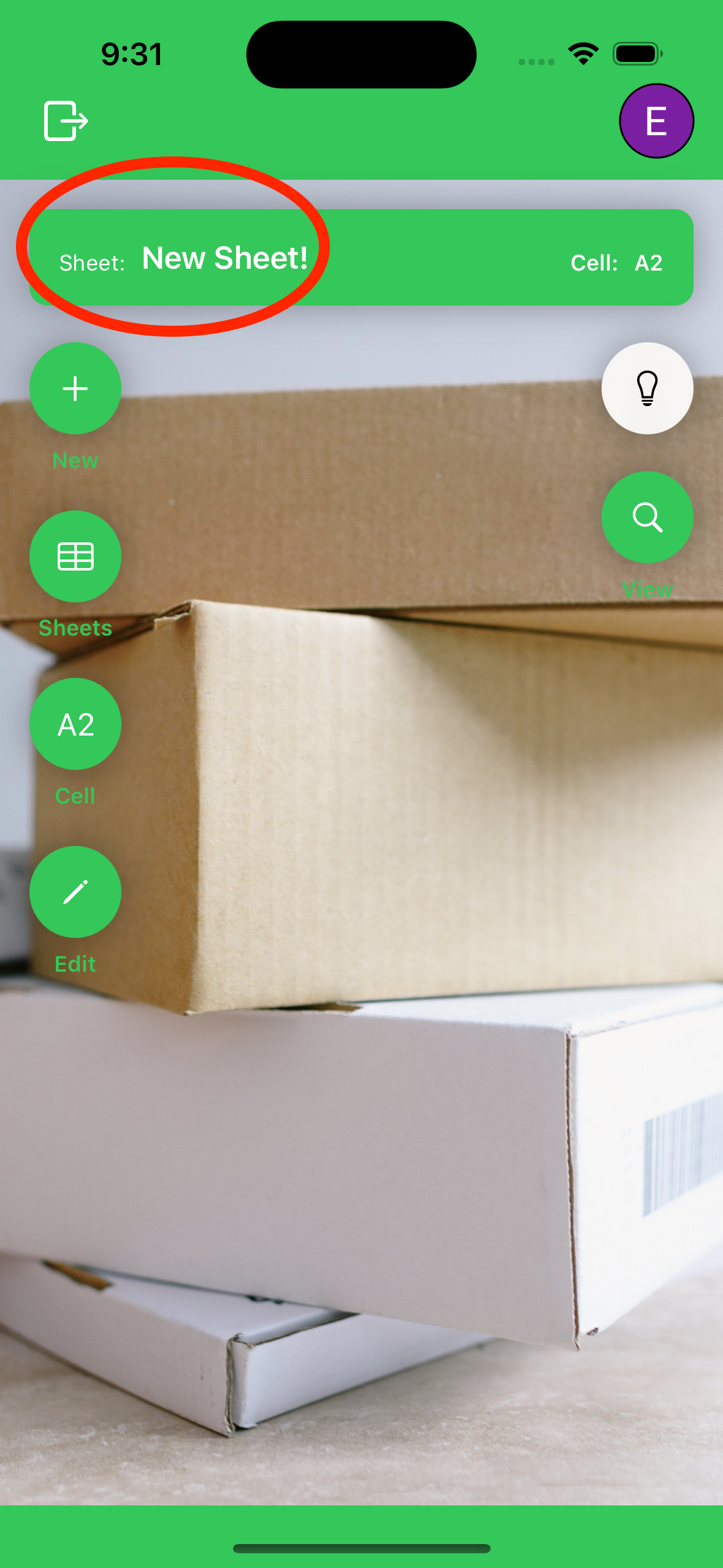
1-2 Choose a name for your spreadsheet and column from the dropdowns and click create.
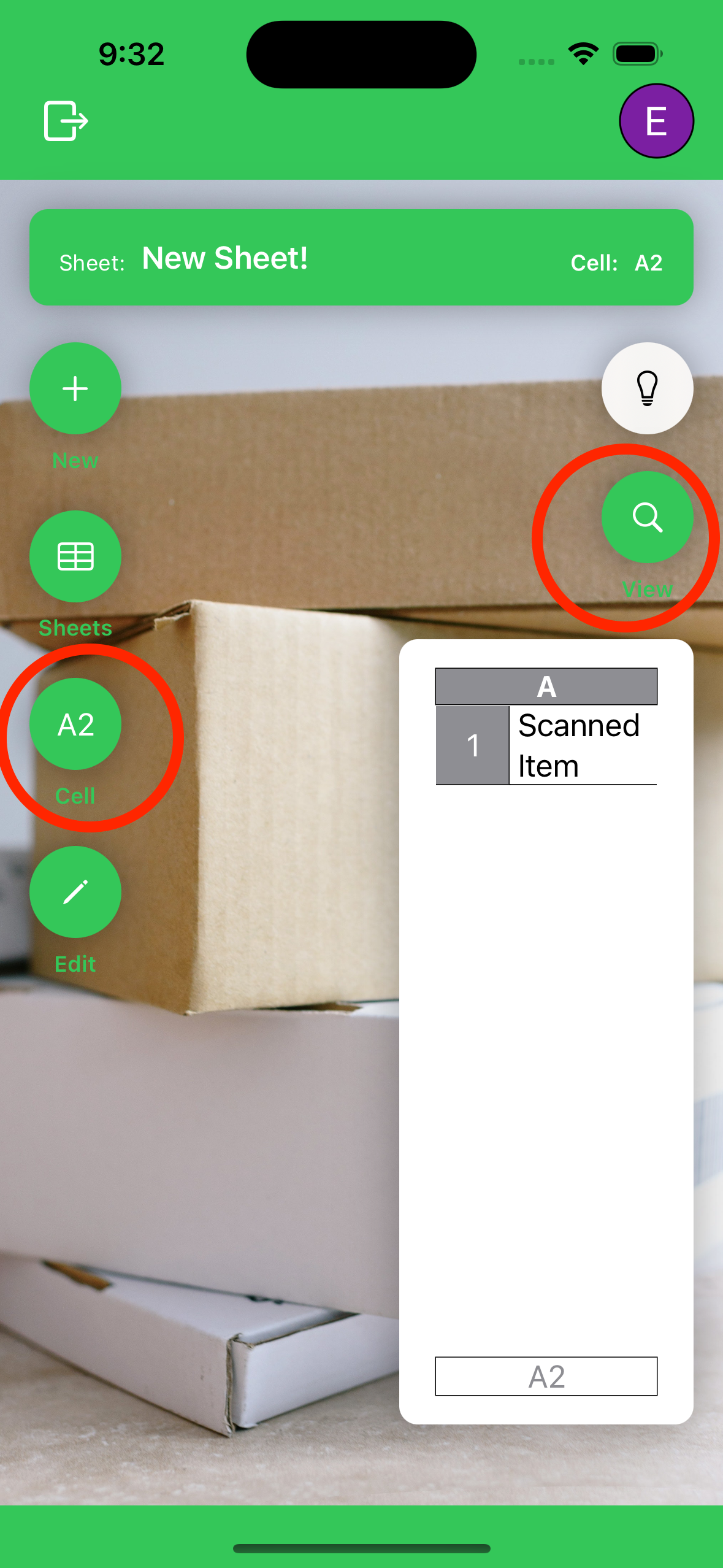
1-3 Your new sheet is now selected.
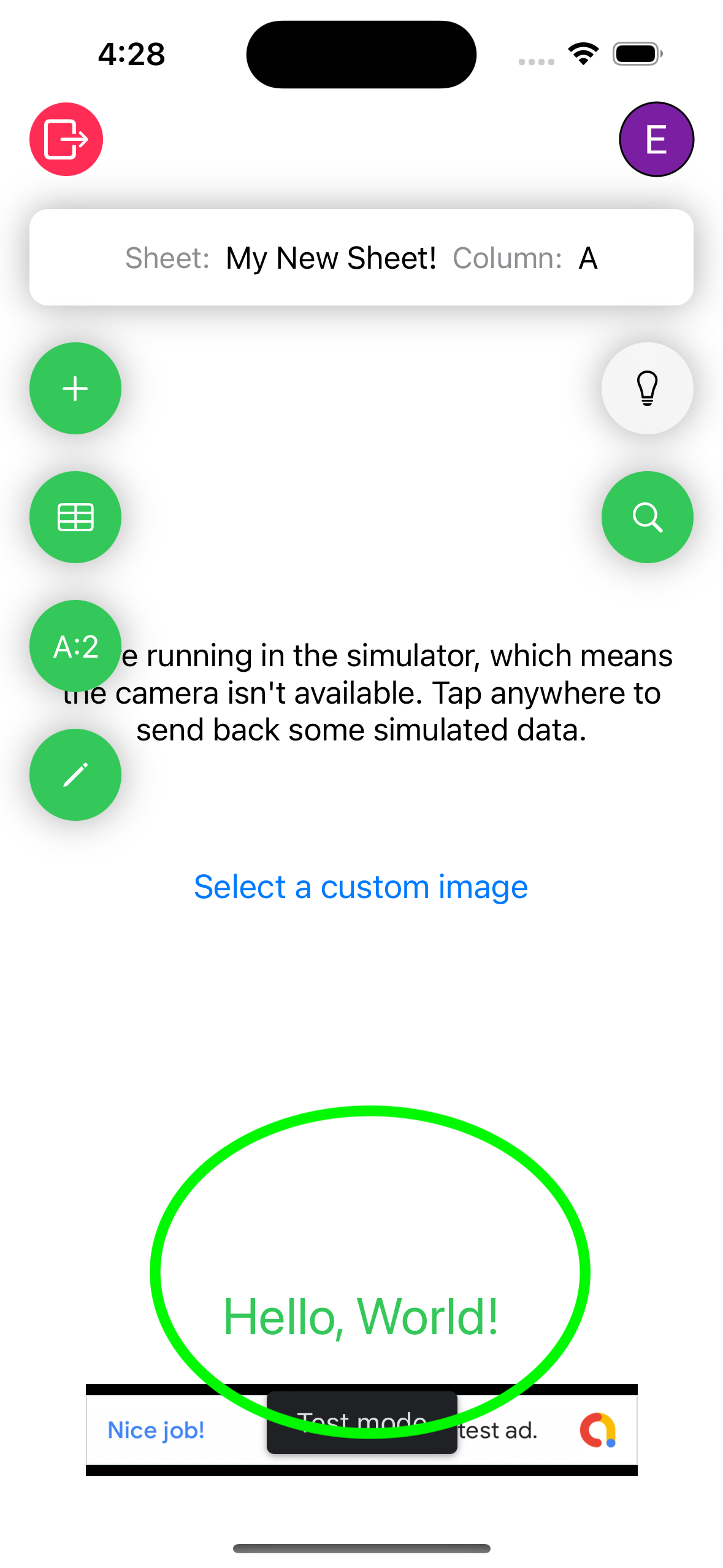
1-4 Scan a barcode, the result will pop up on the bottom of the screen.
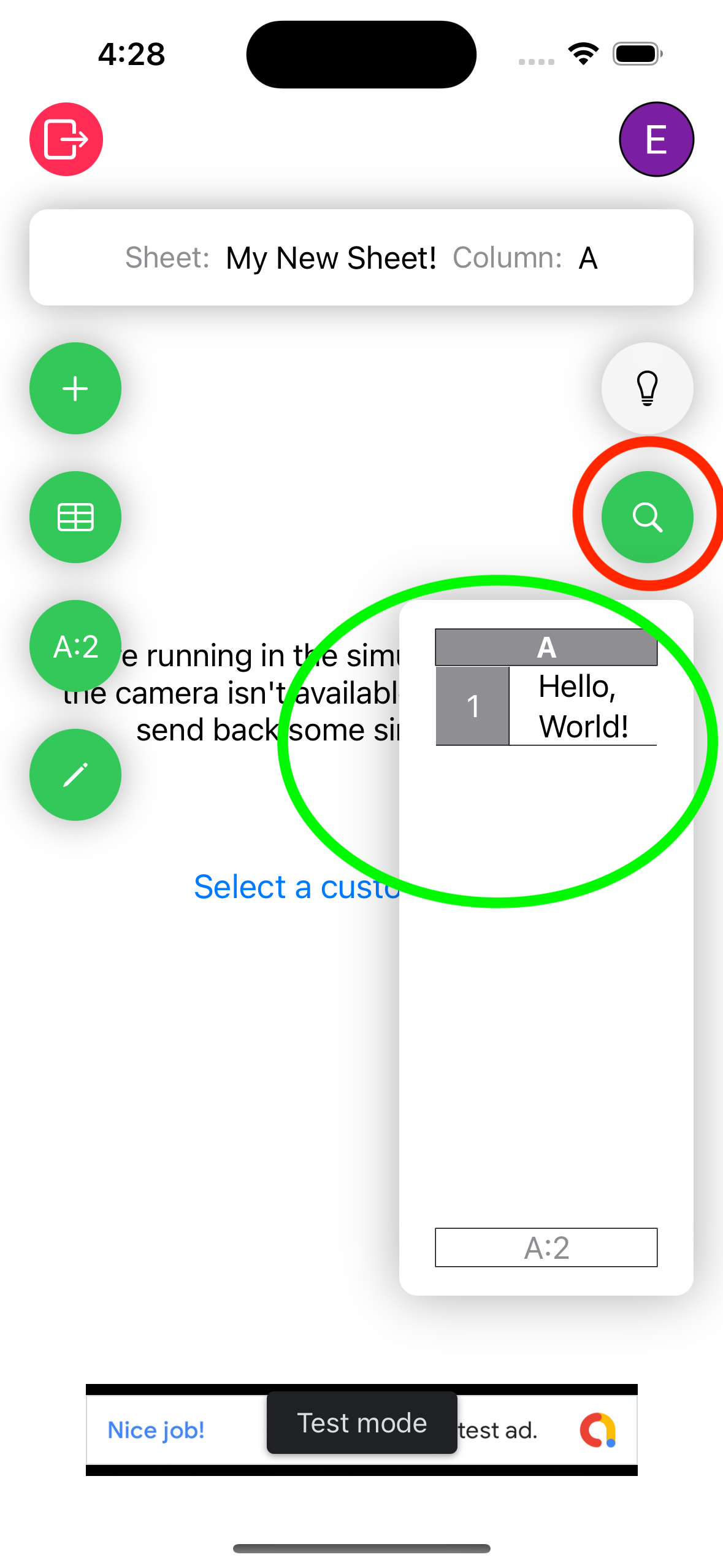
1-5 Click the magnifying glass and set check the spreadsheet for the entry.
Edit a Cell
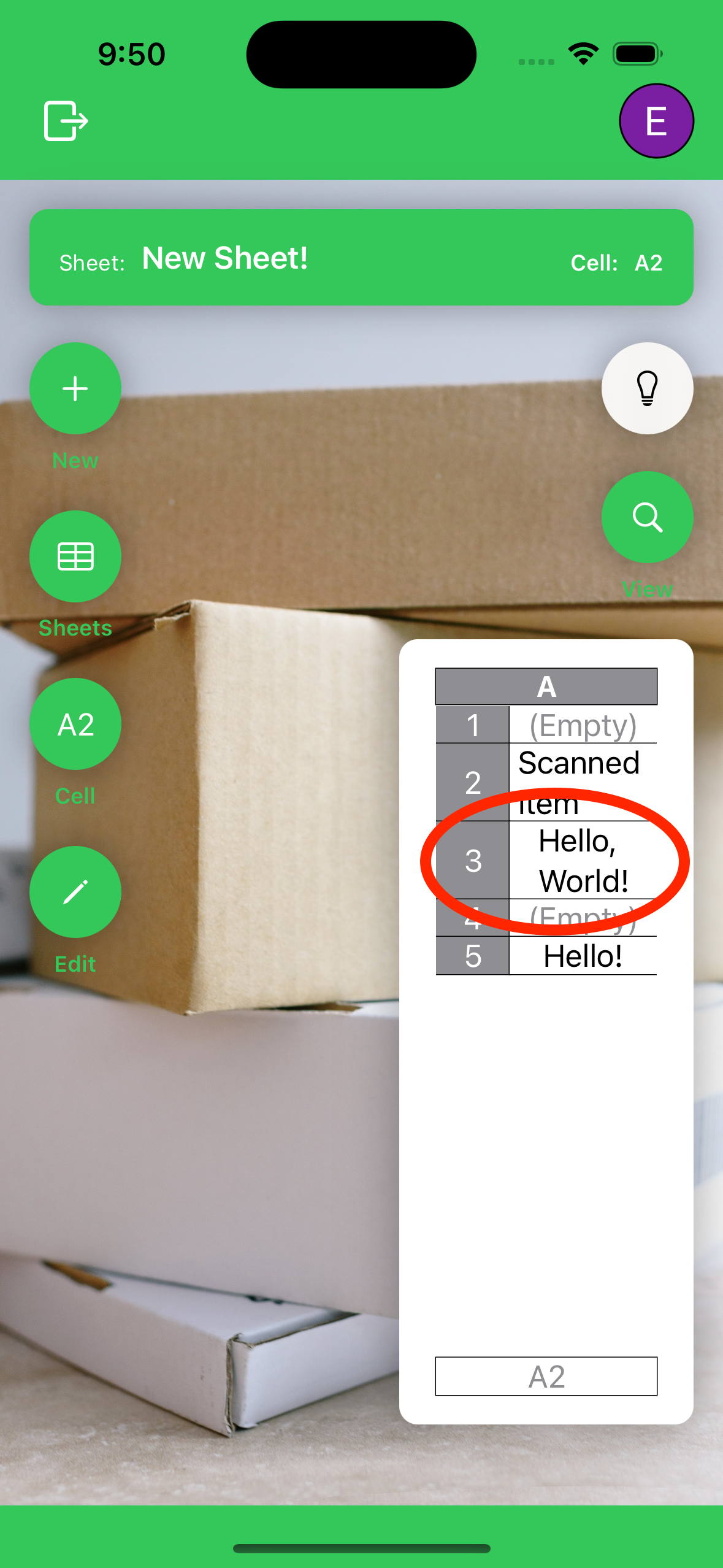
1-1 Tap the magnifying glass to view the spreadsheet and tap a cell.
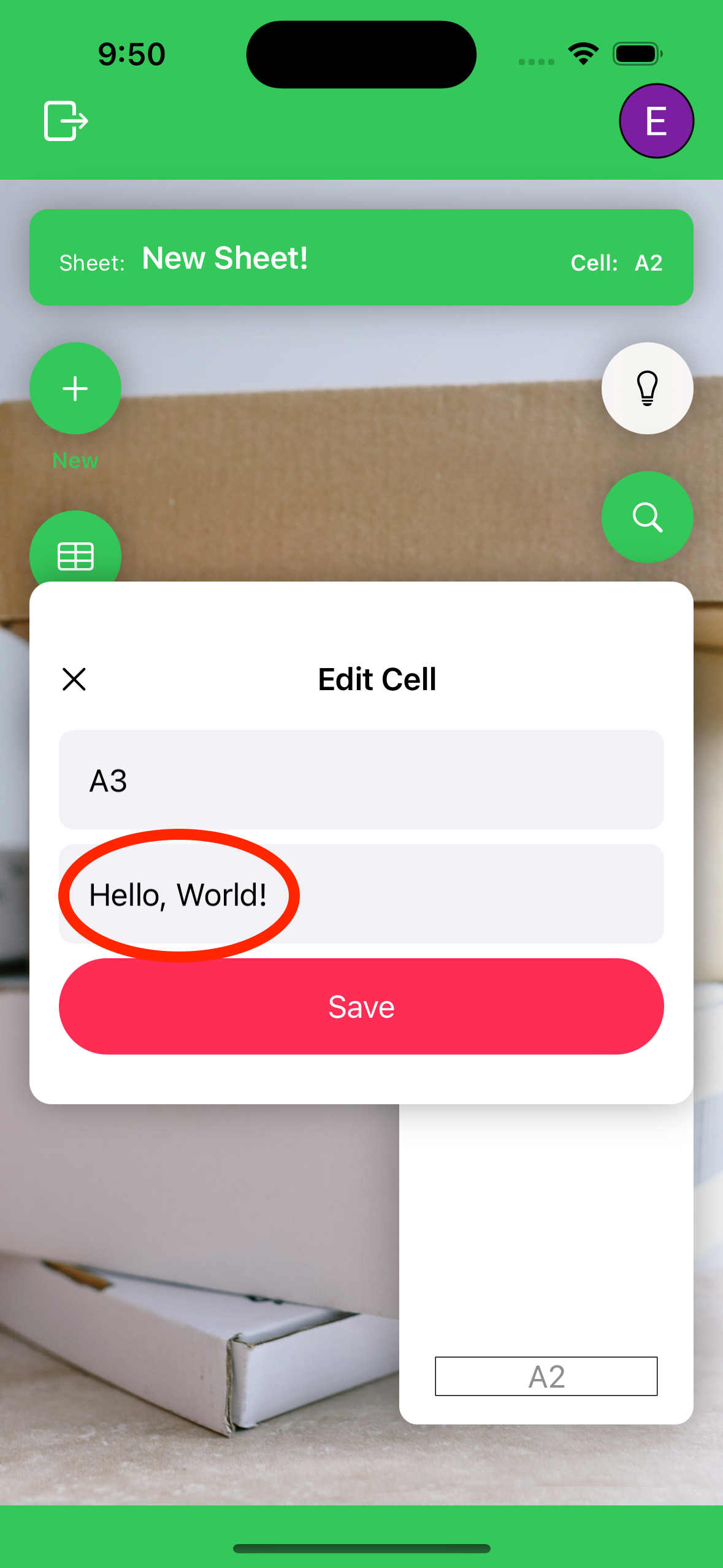
1-2 A modal will pop up with the cell data.
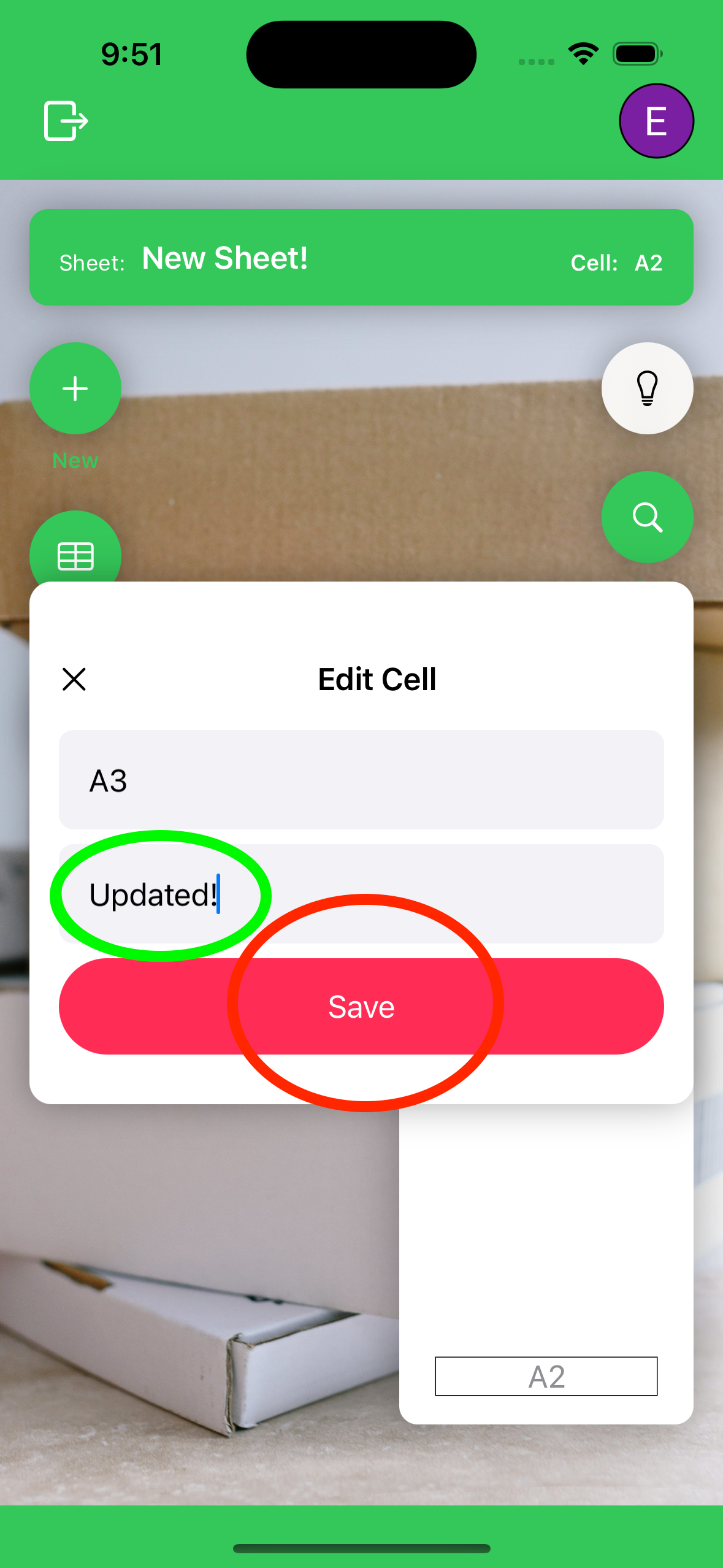
1-3 Enter a new value and click update.
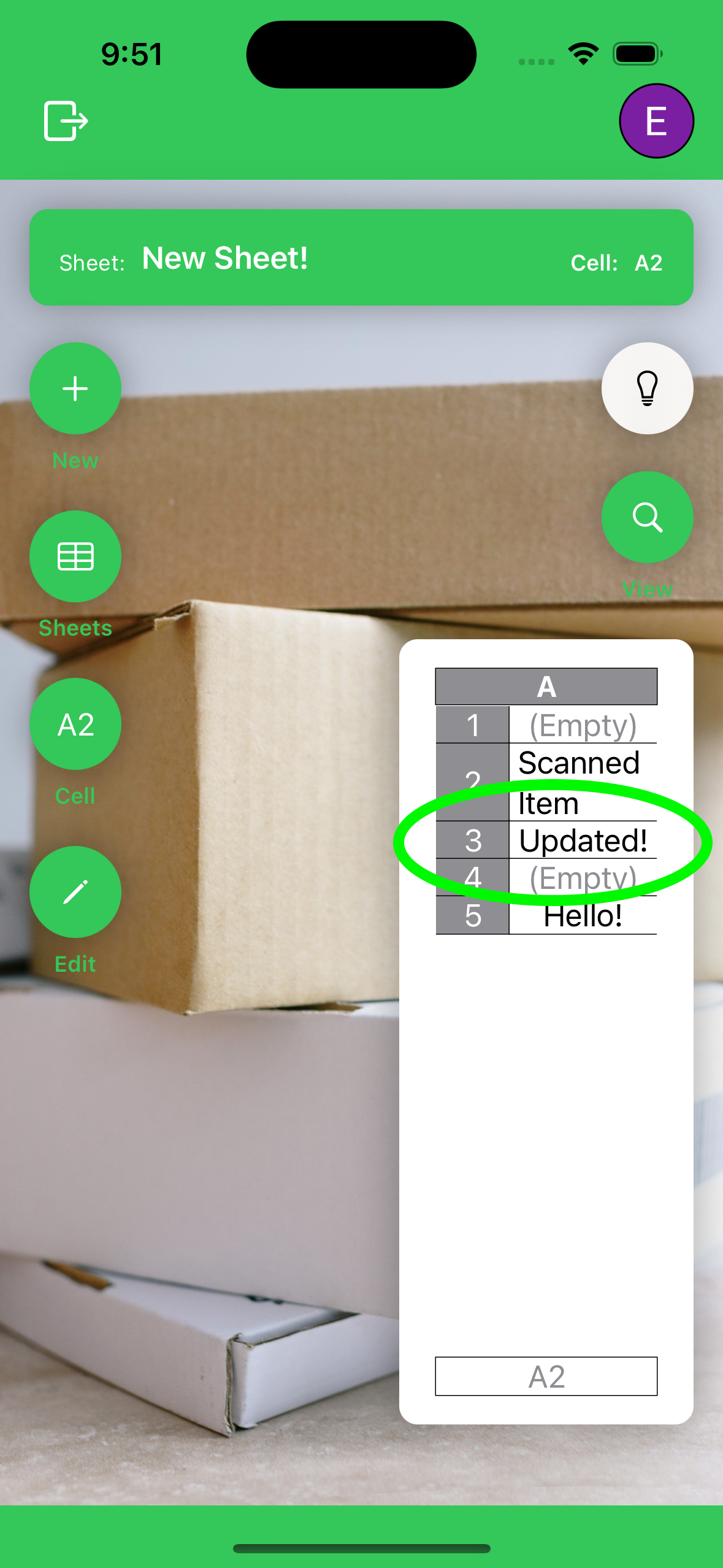
1-4 Confirm the cell has updated in the spreadsheet view.
Update a Cell
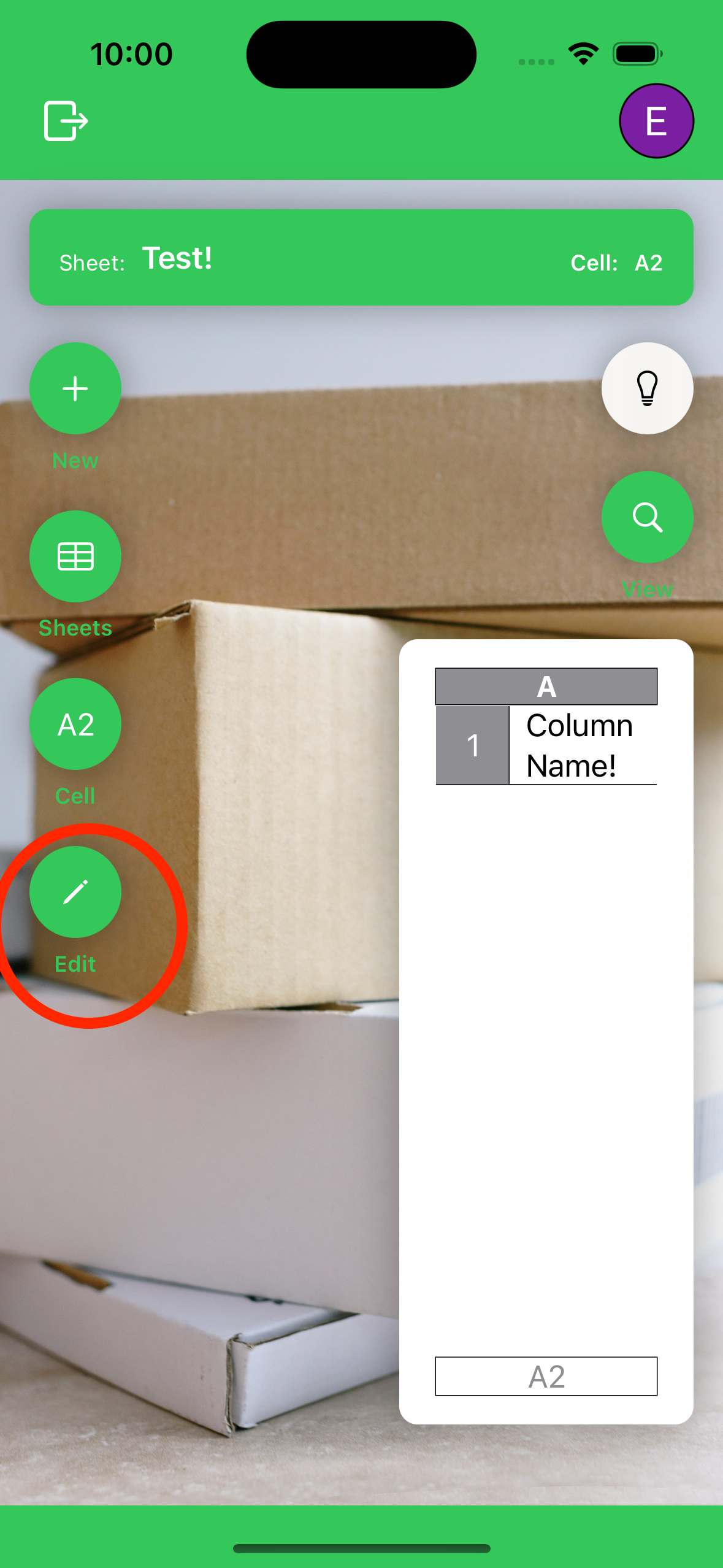
1-1 Tap the pencil button to open a modal.
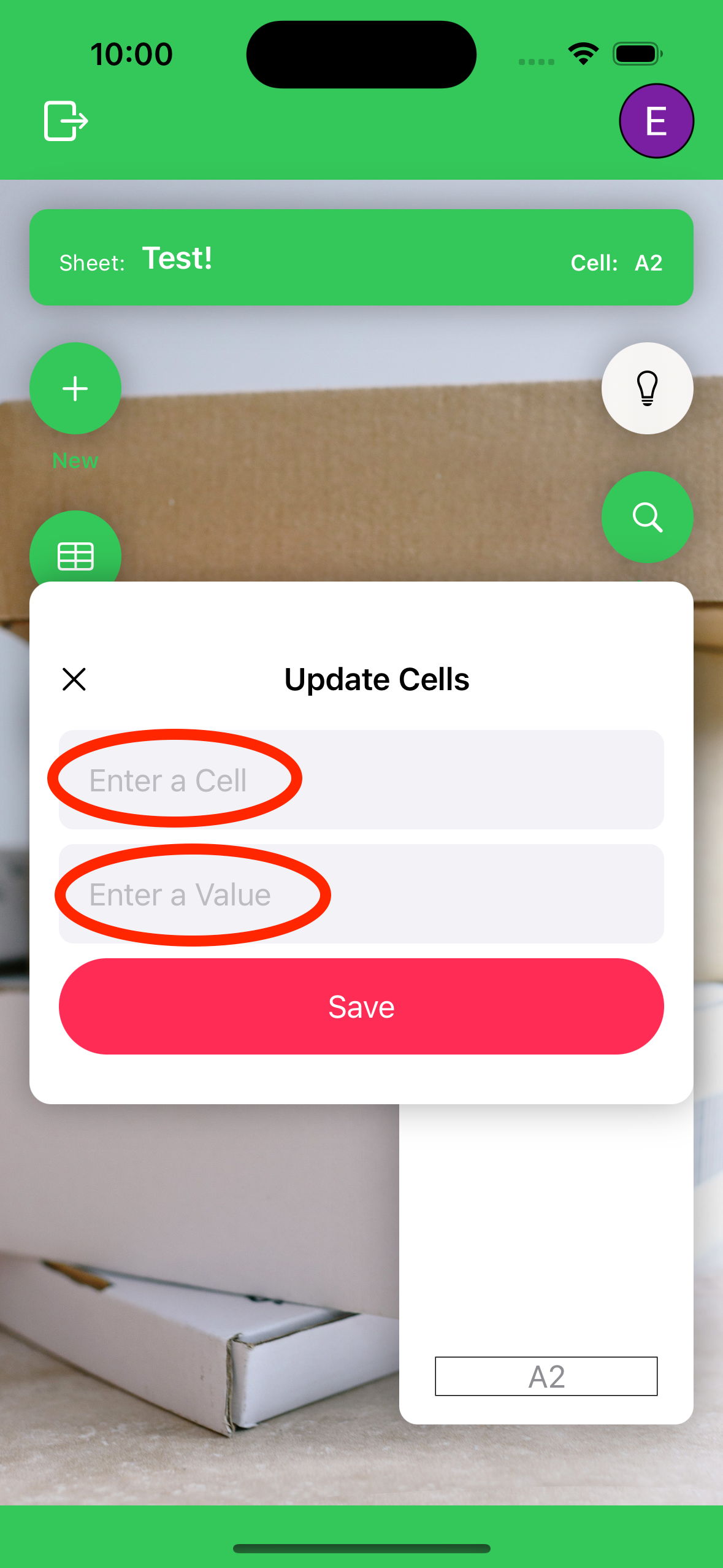
1-2 Enter a cell (ex A1) and a value.
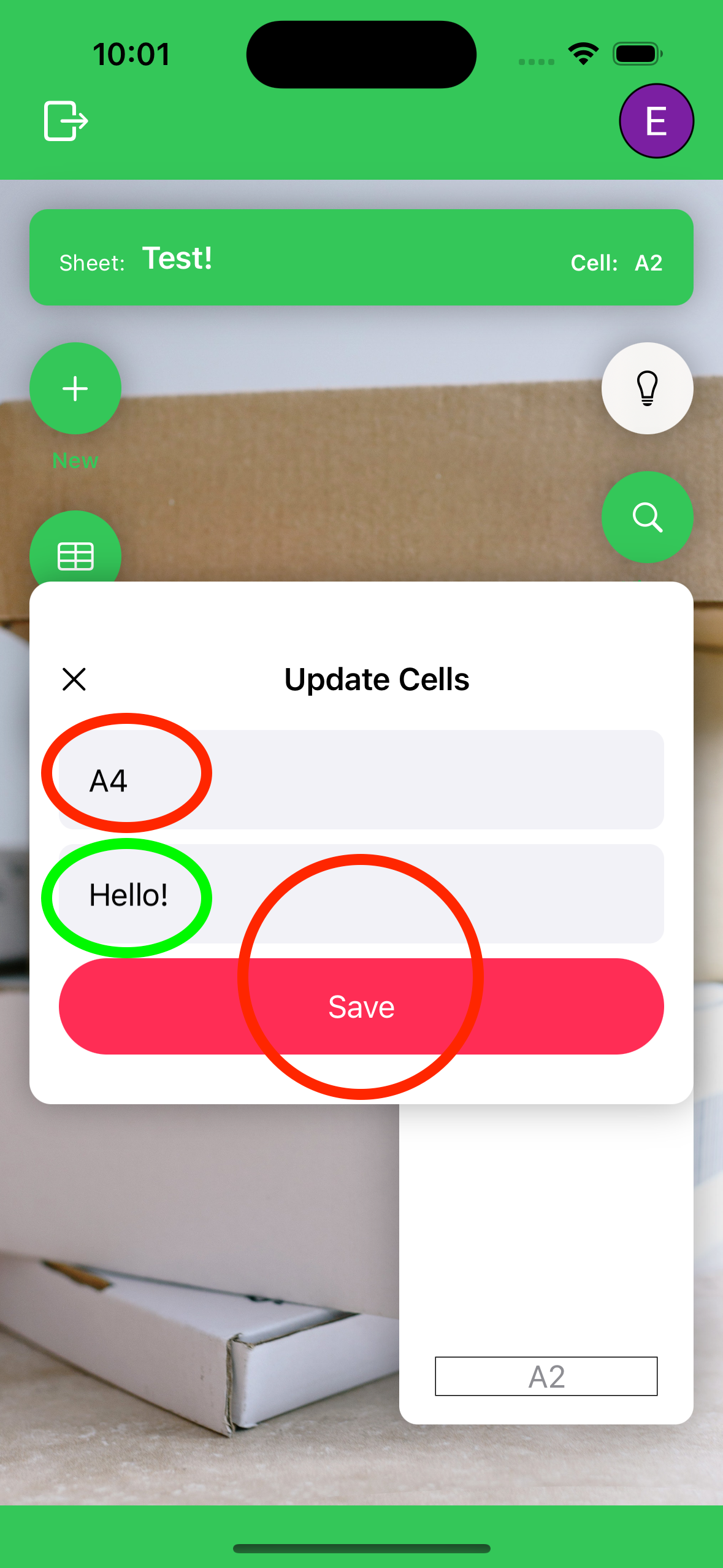
1-3 Enter a new value and click update.
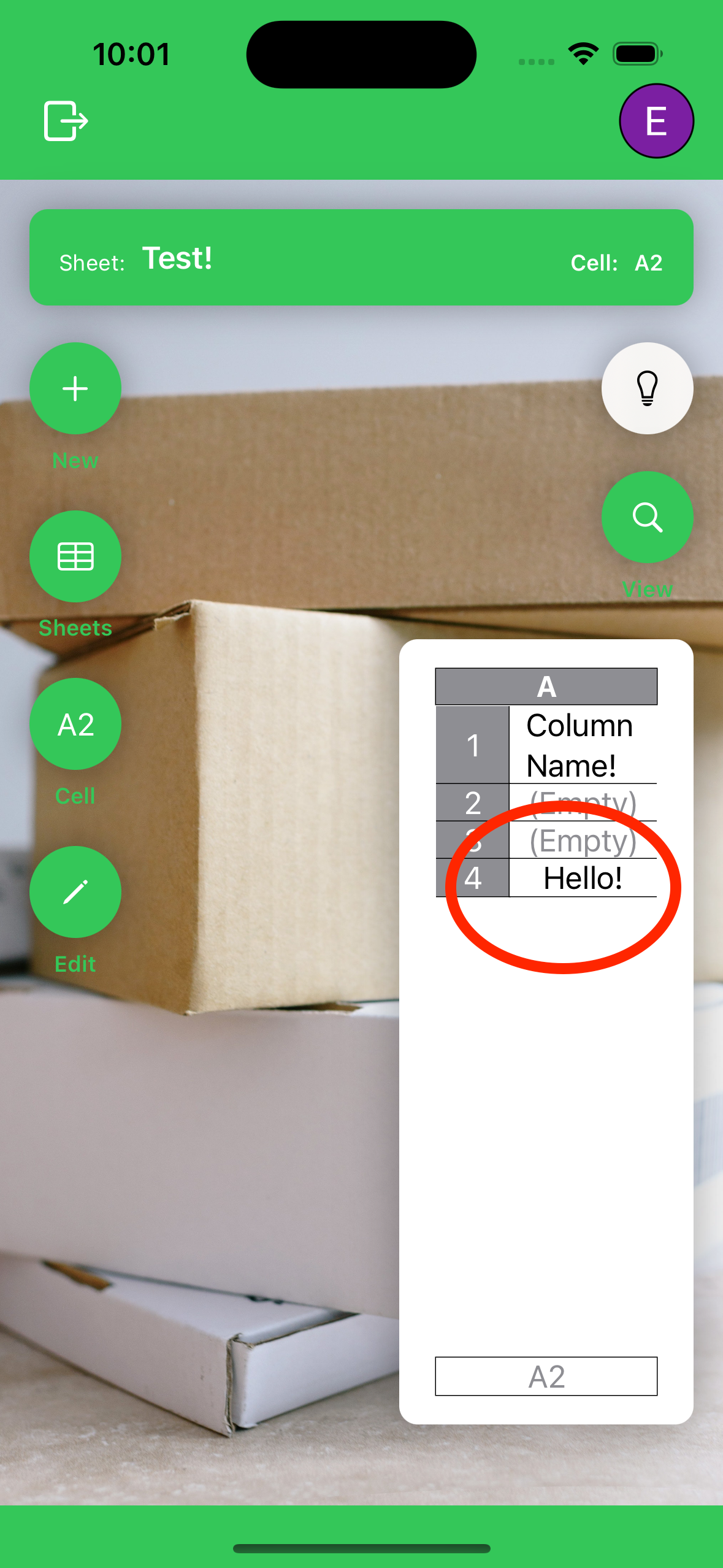
1-4 Confirm the cell has updated in the spreadsheet view.